Nuvioo CRM – Zoom Integration
Pre-Release Documentation
This documentation explains how to connect and use the Zoom integration with Nuvioo CRM. The Nuvioo Zoom integration is currently pending approval and may be updated before public release.
Overview
The Nuvioo CRM Zoom integration allows users to connect their Zoom account to Nuvioo CRM and use Zoom as part of their CRM workflow.
A Zoom account is required to connect the integration.
Adding and Connecting Zoom
Prerequisites
Before connecting Zoom:
- You must have an active Nuvioo CRM account.
- You must have an active Zoom account.
Connect Your Zoom Account
- Log in to Nuvioo CRM.
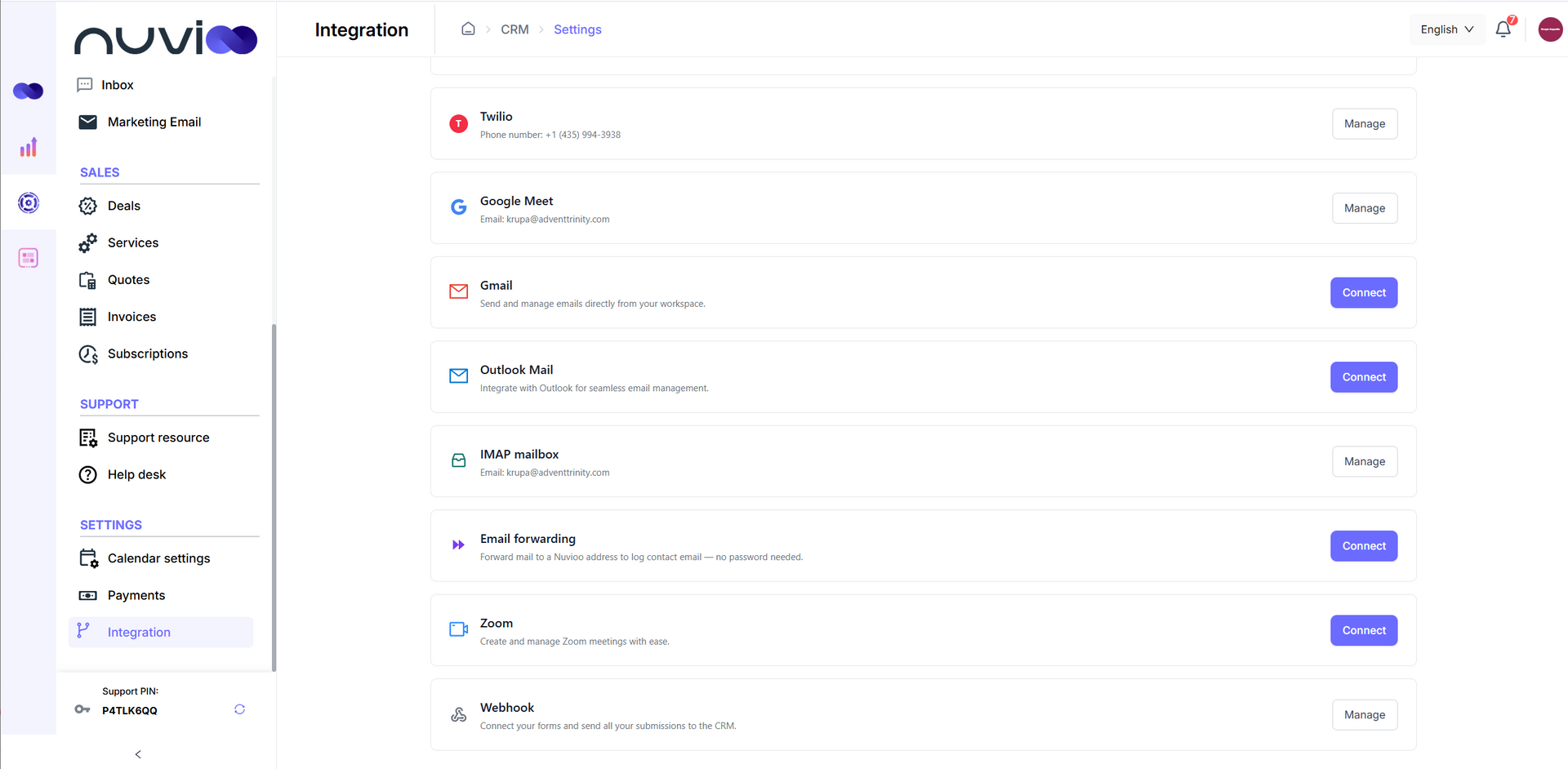
- Navigate to Integrations.
- Select Zoom.
- Click Connect.
- You will be redirected to Zoom to sign in.
- Sign in using your Zoom account credentials.
- Review the permissions requested by Nuvioo.
- Click Authorize to allow Nuvioo to connect to your Zoom account.
- After authorization is completed, you will be returned to Nuvioo CRM.
- The Zoom integration will show as Connected.
Connection flow:
Nuvioo CRM → Integrations → Zoom → Connect Zoom → Sign in to Zoom → Authorize → Zoom connected
Authorization
When you authorize the integration, Zoom allows Nuvioo to access the permissions required for the Zoom functionality provided by the integration.
Review the permissions presented by Zoom before clicking Authorize.
Using the Zoom Integration
Once Zoom is connected, Nuvioo CRM can use the authorized Zoom connection to provide Zoom-related functionality within the CRM.
To use the integration:
- Confirm that Zoom is shown as connected under Nuvioo CRM → Integrations → Zoom.
- Use Zoom for video conferencing for appointments within Nuvioo CRM.
- If you make changes to your Zoom account or authorization, return to the Zoom integration settings in Nuvioo to confirm that the connection is still active. If not, please re-connect Zoom.
Prerequisites
To use the integration:
- Your Nuvioo CRM account must be active.
- Your Zoom account must be active.
- The Zoom integration must remain authorized and connected.
- Your Zoom account must have the permissions required for the applicable Zoom functionality.
Troubleshooting
Zoom will not connect
Make sure:
- You are signed in to the correct Zoom account.
- Your Zoom account is active.
- You complete the authorization process in Zoom.
If the connection still does not complete, return to Nuvioo CRM → Integrations → Zoom and try connecting again.
Zoom shows as disconnected
Go to Nuvioo CRM → Integrations → Zoom and check the connection status.
If necessary, reconnect the Zoom account by selecting Connect and completing the authorization process again.
Zoom functionality is not working
Confirm that:
- Zoom is connected in Nuvioo CRM.
- Your Zoom account is active.
- The required authorization has not been revoked.
- You are using the correct Zoom account.
If the issue continues, contact Nuvioo Support.
Removing / Disconnecting Zoom
You can disconnect your Zoom account from Nuvioo CRM.
Disconnect from Nuvioo
- Log in to Nuvioo CRM.
- Go to Integrations.
- Select Zoom.
- Click 'Manage'.
- Click 'Remove' to remove the Zoom account and Zoom integration from Nuvioo.
After disconnecting, Nuvioo will no longer have an active authorized connection to your Zoom account. Zoom-related functionality in Nuvioo that requires an active connection will no longer be available until the account is connected again.
Revoke Access from Zoom
You may also remove Nuvioo's authorization from your Zoom account through your Zoom account's app management settings.
After access is revoked in Zoom, the Nuvioo Zoom integration will no longer have authorization to access the connected Zoom account.
Support
If you experience problems connecting, using, or disconnecting the Zoom integration, contact Nuvioo Support for assistance.
When contacting support, include:
- A description of the issue
- Any error message displayed
- Screenshots, if applicable